




| This guide was specifically created for editors working within Google Documents on Windows-based computers. However, much of what’s discussed here can be used in other text editing programs such as Microsoft Word. We’ve highlighted shortcuts that are either used across multiple apps or Gdocs specifically. |
The Essentials: Hand Placement
Hand placement on the keyboard is the first towards building habits that streamline workflows. It’s important to keep in mind how comfortable your positioning is to avoid cramping or even other long-term effects such as arthritis. With that in mind, we can work towards positions that maximize keyboard reach. I personally shift between two different types of positions depending on whether I’m typing or navigating.The Typing Position
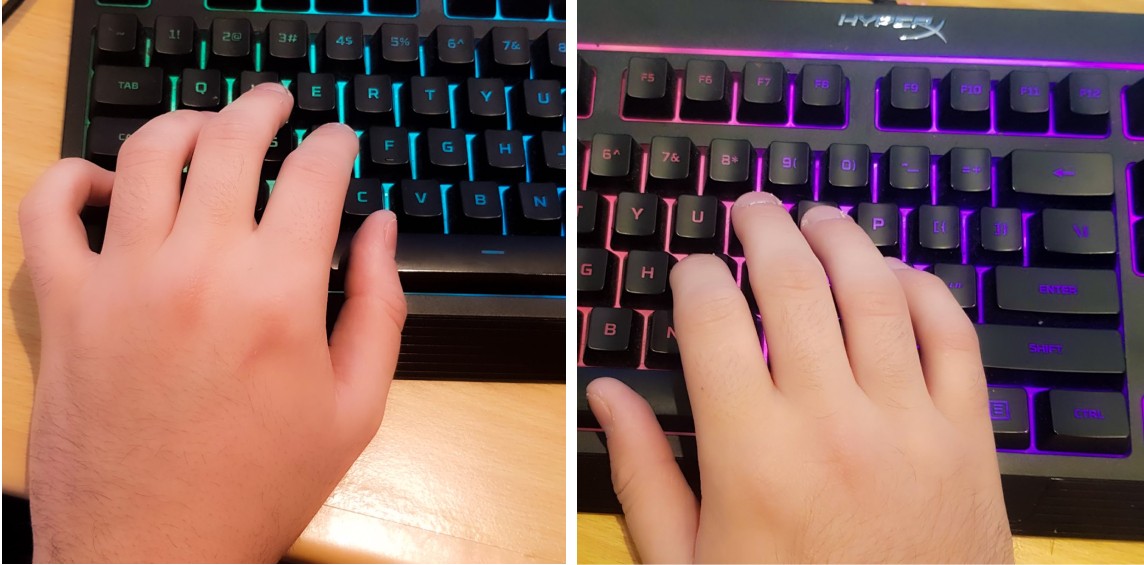 This is the traditional position for those looking to type quickly and efficiently. Touch typists can position their hands without looking by feeling for the homing bars on the F and J keys.
I prefer to keep my left hand centered on the left-hand side, close to the WASD cluster. I keep my pinky finger over the shift key for capitalizing options.
Keeping my right hand close to the right side of the keyboard allows me to hover over the I and J keys. But most importantly, I keep my thumb over the space bar for quick access. My pinky and ring fingers are close to the Enter key and the Backspace key.
Because I am right handed I tend to use my right hand to press more characters than my left. So everything right from the TGV I tend to press with my right hand, but I imagine those who are left-handed may have a different set-up.
This is the traditional position for those looking to type quickly and efficiently. Touch typists can position their hands without looking by feeling for the homing bars on the F and J keys.
I prefer to keep my left hand centered on the left-hand side, close to the WASD cluster. I keep my pinky finger over the shift key for capitalizing options.
Keeping my right hand close to the right side of the keyboard allows me to hover over the I and J keys. But most importantly, I keep my thumb over the space bar for quick access. My pinky and ring fingers are close to the Enter key and the Backspace key.
Because I am right handed I tend to use my right hand to press more characters than my left. So everything right from the TGV I tend to press with my right hand, but I imagine those who are left-handed may have a different set-up.
The Navigation Position
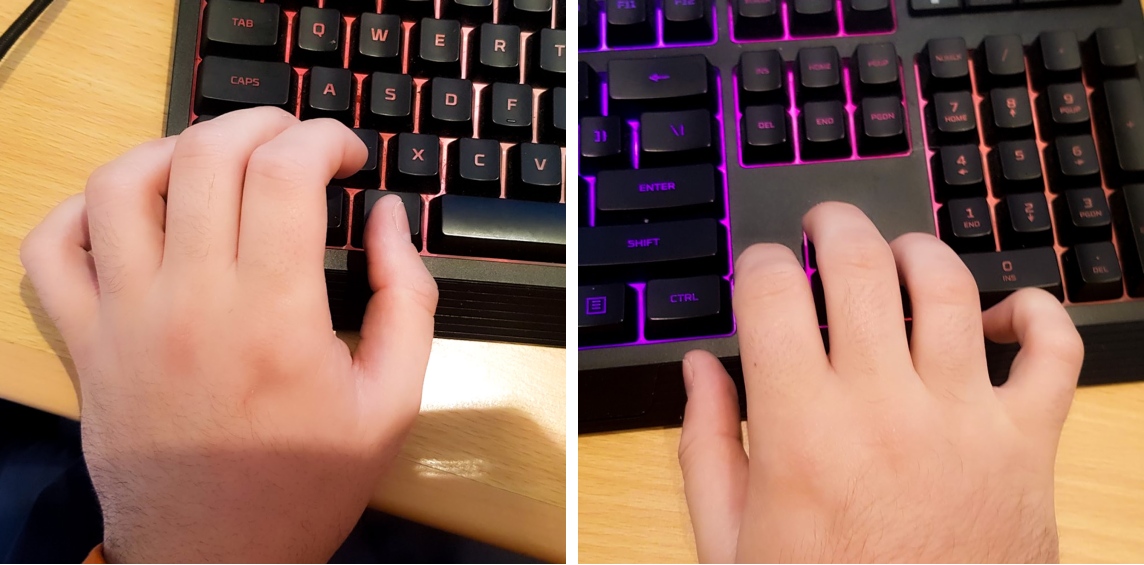 This is the position I use most when editing a document, as it maximizes navigational speed and maneuverability, and might even be considered my resting position.
Keeping the left ring finger on the Ctrl key makes it easier for me to input shortcuts. My middle finger hovers over the Shift key for quick selections and shortcuts. This also puts my thumb naturally in the position of the Alt key for even more shortcuts. My index finger has access to a few essential shortcut keys here as well — C, X, Z and V.
Something that I tend to avoid, and can’t recommend, is using your pinky for the Ctrl key. It may be tempting to do this so you can stretch your index and middle fingers for additional shortcuts, but this can lead to cramps.
My right hand is kept around the arrow keys for quick navigation while my left hand keeps the Ctrl key down. The Del, End, PgUp, PgDn and Home keys are all closer to the right hand.
This is the position I use most when editing a document, as it maximizes navigational speed and maneuverability, and might even be considered my resting position.
Keeping the left ring finger on the Ctrl key makes it easier for me to input shortcuts. My middle finger hovers over the Shift key for quick selections and shortcuts. This also puts my thumb naturally in the position of the Alt key for even more shortcuts. My index finger has access to a few essential shortcut keys here as well — C, X, Z and V.
Something that I tend to avoid, and can’t recommend, is using your pinky for the Ctrl key. It may be tempting to do this so you can stretch your index and middle fingers for additional shortcuts, but this can lead to cramps.
My right hand is kept around the arrow keys for quick navigation while my left hand keeps the Ctrl key down. The Del, End, PgUp, PgDn and Home keys are all closer to the right hand.
Essential Shortcuts: Navigation
These are the shortcuts used for moving around the document. They seem a bit boring, but mastery here opens the door to improved efficiency.| Shortcut | Effect | Where it can be used |
| Ctrl+Right/Left Arrow Key | Moves one word to right or left | Multiple |
| Ctrl+Up/Down Arrow Key | Moves one paragraph up or down | Multiple |
| End | Moves to end of a line | Multiple |
| PgUp/PgDn | Moves one page up or down | Multiple |
Essential Shortcuts: The Basics
These shortcuts are the bread and butter of any editor. While these are the basic building blocks, they provide a solid foundation from which to expand.| Shortcut | Effect | Where it can be used |
| Ctrl+C | Copy with formatting | Multiple |
| Ctrl+X | Cut with formatting | Multiple |
| Ctrl+V | Paste with formatting | Multiple |
| Ctrl+Shift+V | Paste without formatting | Gdocs |
| Ctrl+Z | Undo | Multiple |
| Ctrl+Shift+Z | Redo | Gdocs |
Essential Shortcuts: Selection
Selection is the last essential piece of the editing shortcut puzzle. Selection shortcuts are massively helpful for deleting words and moving entire sections of a document.| Shortcut | Effect | Where it can be used |
| Shift+Right/Left Arrow Key | Select character to the left or right | Multiple |
| Ctrl+Shift+Right/Left Arrow Key | Select word to the left or right | Multiple |
| Ctrl+Shift+Up/Down Arrow Key | Select paragraph above or below | Gdocs/Word |
| Ctrl+A | Select all | Multiple |
| Ctrl+Shift+End | Select to the end of document | Multiple |
| Ctrl+Shift+Home | Select to the start of document | Multiple |
Intermediate Shortcuts: Formatting
Now that all of the basic essential shortcuts have been covered, here are some examples of intermediate ones. These shortcuts are all related to document formatting and, if we combine them with the selection shortcuts before, will become an essential tool for editing.| Shortcut | Effect | Where it can be used |
| Ctrl+I | Italics | Gdocs/Word |
| Ctrl+B | Bold | Gdocs/Word |
| Ctrl+U | Underline | Gdocs/Word |
| Alt+Shift+5 | Strikethrough | Gdocs |
| Ctrl+Alt+0 | Normal Style | Gdocs/Word |
| Ctrl+Alt+1 | Heading 1 | Gdocs/Word |
| Ctrl+Alt+2 | Heading 2 | Gdocs/Word |
| Ctrl+Alt+3 | Heading 3 | Gdocs/Word |
| Ctrl+Alt+4 | Heading 4 | Gdocs |
| Ctrl+Space | Clear formatting | Gdocs/Word |
| Ctrl+Shift+L | Align text left | Gdocs |
| Ctrl+Shift+E | Align text center | Gdocs |
| Ctrl+Shift+R | Align text right | Gdocs |
| Ctrl+Shift+J | Justify text | Gdocs/Word |
| Ctrl+Shift+7 | Create numbered list | Gdocs |
| Ctrl+Shift+8 | Create bulleted list | Gdocs |
| Ctrl+Shift+. | Increase font size | Gdocs/Word |
| Ctrl+Shift+, | Decrease font size | Gdocs/Word |
| Ctrl+. | Switch to superscript font | Gdocs |
Intermediate Shortcuts: Editor’s Tools
Let’s now look at some tools for editors that I think are incredible time saves. Some of these shortcuts may be tools that you have used before without even realizing there was a quicker way — such as leaving a comment with Ctrl+Alt+M.| Shortcut | Effect | Where it can be used |
| Ctrl+Alt+M | Leave a comment | Gdocs |
| (In comment) Ctrl+Enter | Post comment | Gdocs |
| Ctrl+K | Insert link | Gdocs/Word |
| (In link) Ctrl+Enter | Post link | Gdocs |
| Ctrl+Shift+C | Word count (per selection). | Gdocs |
| Ctrl+Shift+Y | Define word | Gdocs |
| Ctrl+F | Find | Multiple |
| Ctrl+H | Find and replace | Gdocs/Word |
| Ctrl+Alt+Shift+Z | Shift to permanent edits | Gdocs |
| Ctrl+Alt+Shift+X | Shift to suggested edits | Gdocs |
| Ctrl+Enter | Insert page break | Gdocs/Word |
Advanced Shortcuts: Navigation
While these tools are useful for advanced navigation, they can be confusing to pull off at times. Nevertheless, they remain worthy of inclusion for those seriously considering taking their technical editing skills to that next level. Some of these are Chrome specific, particularly for moving around the browser with more efficiency. I especially love the tab change shortcuts for working between two different documents.| Shortcut | Effect | Where it can be used |
| Ctrl+Alt+N then H | Move to next heading | Gdocs |
| Ctrl+Alt+P then H | Move to previous heading | Gdocs |
| Ctrl+1 (through to 9) | Changes tab to number pressed. | Chrome |
| Ctrl+Tab | Change to next tab | Chrome |
| Ctrl+Shift+Tab | Change to previous tab | Chrome |
| Ctrl+Alt+N then O | Move to the next item on a list | Gdocs |
| Ctrl+Alt+P then O | Move to the previous item on a list | Gdocs |
| Ctrl+Alt+N then L | Move to the next link | Gdocs |
| Ctrl+Alt+P then L | Move to the previous link | Gdocs |
| Ctrl+Alt+K | Move to next edit | Gdocs |
| Ctrl+Alt+J | Move to previous edit | Gdocs |